

OVERVIEW
ENGINEHEAR would be an audio engine plugin providing music composers and sound designers with the ability to create sounds and instruments to both test and play with maximum flexibility and speed, not feasibly possible within a DAW environment.
The workflow of ENGINEHEAR would work by assigning each key on the users midi keyboard to one PAGE.
Each PAGE would have four horizontal STRIP's.
Each STRIP would be populated with effects and may contain one audio sample imported via drag and drop or the browse option.
So ENGINEHEAR would be capable of generating up to four sounds per midi key with each sound being able to be affected immediately and with total independence.
Conceptually, ENGINEHEAR is an audio engine triggered by a midi keyboard that would output audio. This means that it would not be able to assign midi automation. It is more of a sound design and/or compositional sketching tool that would facilitate the testing and confirming of ideas that could be translated to a DAW.
However, it would be possible to play ENGINEHEAR live into a recording session on a single record armed track within a DAW.
Preferably ENGINEHEAR would be a stand alone application as well.

The ENGINEHEAR user interface[UI] would be such that whatever key is pressed on the midi keyboard is the PAGE that is displayed and that key on the UI is highlighted green.
If a chord is pressed, then the lowest key of that chord on the keyboard could/ would be highlighted green and is the PAGE displayed.
Since there would be sounds on these keys and pressing them to access their respective PAGE would commit to hearing the sound[s], there would be a feature that may be checked on the ENGINEHEAR UI, allowing for mouse clicking on the UI keyboard to access PAGE's instead of pressing keys on the midi keyboard.
So, in practice, each time a key is pressed on the midi keyboard the ENGINEHEAR UI is changing. However the only visible changes occurring would be the name of the sound file if different and the effect settings.
AUDIO IMPORT
Importing a single audio file would be done by either
the drag and drop of an audio file into the window
under the SOUND tab or by clicking BROWSE under the same window. [ Figure #1 ]
1.
Importing multiple audio files would map the files
across a range of keys in a STRIP and would be done
by clicking BATCH AUDIO IMPORTER under the
STRIP number. [ Figure #2A ]
This would bring up the dialogue box that would allow the user to place the audio files where desired by dragging them into the dialogue box grid. [ Figure #2B ]
2A.
NOTE: BATCH AUDIO IMPORTER [BAI] intended operations:
Clicking on BAI would bring up it's dialogue box. Click then shift click on adjacent audio files or click then cmd/ ctrl click non-adjacent files and drag and drop them onto the grid in the dialogue box. Then click APPLY.
IMPORTANT: The first audio file clicked on would import to either the lower or higher register on the keyboard while the file clicked on last would import to the opposite register of the keyboard in an
ascending/ descending semi-tonal order.
After importing it would be advantageous to be able to drag the samples to desired keys within the BAI interface and even have a hotkey assist for duplicating and dragging them to other keys.
2B.


EFFECTS/ LINK FX
Individual effects would have both solo and mute controls and
would be able to be copied and pasted to that same effect on any STRIP on any PAGE.
NOTE: [see Master Controls]
It would also be possible to copy and paste all effects on a particular STRIP to any other STRIP on any other PAGE.

Unlike the other tabs with single copy and paste, the FX tab would be populated with multiple effects and would require a dialogue box to separate out which effect is to be copied.
To copy and paste any of the effects listed under the FX tab, would require clicking on the copy [c] which would bring up the FX dialogue box where the effect[s] to be copied would be chosen.
Clicking the Keep Window Open box prior to selection would allow for multiple selections and once done, clicking Apply would close the dialogue box.
LINKFX would be akin to a master controller for that effect on that STRIP on more than one PAGE.
Using the C3 PAGE and STRIP 1 ADSR as an example, LINKFX is clicked which would open the LINKFX dialogue box.
C3 PAGE STRIP 1 ADSR would now be set as the master controller and the C3 key highlighted red in the dialogue box would indicate this.
In the dialogue box you would have a range slider corresponding with the midi keyboard keys that allows for selecting what keys that the C3 PAGE STRIP 1 ADSR will control.
While still in the dialogue box, to deselect any of the keys affected set with the range slider, holding a hot key and clicking those keys would remove those keys from the LINKFX controller. Hitting Apply would close the dialogue box and C3 PAGE STRIP 1 ADSR would now control the ADSR on STRIP 1 for all keys selected in the LINKFX dialogue box.
However, any effect that is being controlled by LINKFX would retain independent manipulation.
If after hitting Apply and the dialogue box is closed, LINKFX may be removed from any of the keys assigned by pressing the key on the midi keyboard where LINKFX is not desired and clicking on LINKFX to release it.
To release the LINKFX controller completely from all keys originally assigned, pressing C3 on the midi keyboard, and clicking on LINKFX would disengage LINKFX.

[The example above shows the range slider having been extended one octave and is just an example. The range slider would be able to be extended to the full range of the keyboard.]
MASTER CONTROLS [MC]
Master Controls would facilitate immediate access to the effects settings and/ or sound on a single STRIP per PAGE or a single STRIP across all PAGE's.
Located under the SOUND tab would be the single STRIP per PAGE [MC]. Here would be the ability to copy, paste, reset, solo or mute just this STRIP on just this PAGE.
Located under the PAGE tab would be the single STRIP across all PAGE's. Here would be the ability to copy, paste, reset, solo or mute just this STRIP across all PAGE's.
The HOLD function would serve to keep either a single STRIP[s] or an entire PAGE from otherwise changing while keys on the midi keyboard are being pressed.
This function would be useful while working on a particular effect of a STRIP[s] or PAGE.
Clicking HOLD on an individual STRIP[s] will highlight HOLD to red on that STRIP[s].
Clicking HOLD PAGE would highlight HOLD red on all STRIP's on that PAGE.
When HOLD PAGE has been activated it would be possible to release a STRIP[s] by clicking HOLD on those
STRIP[s].
When HOLD is released from an individual STRIP[s] or PAGE, the STRIP[s] or PAGE displayed would display the last key pressed on the midi keyboard as per usual.
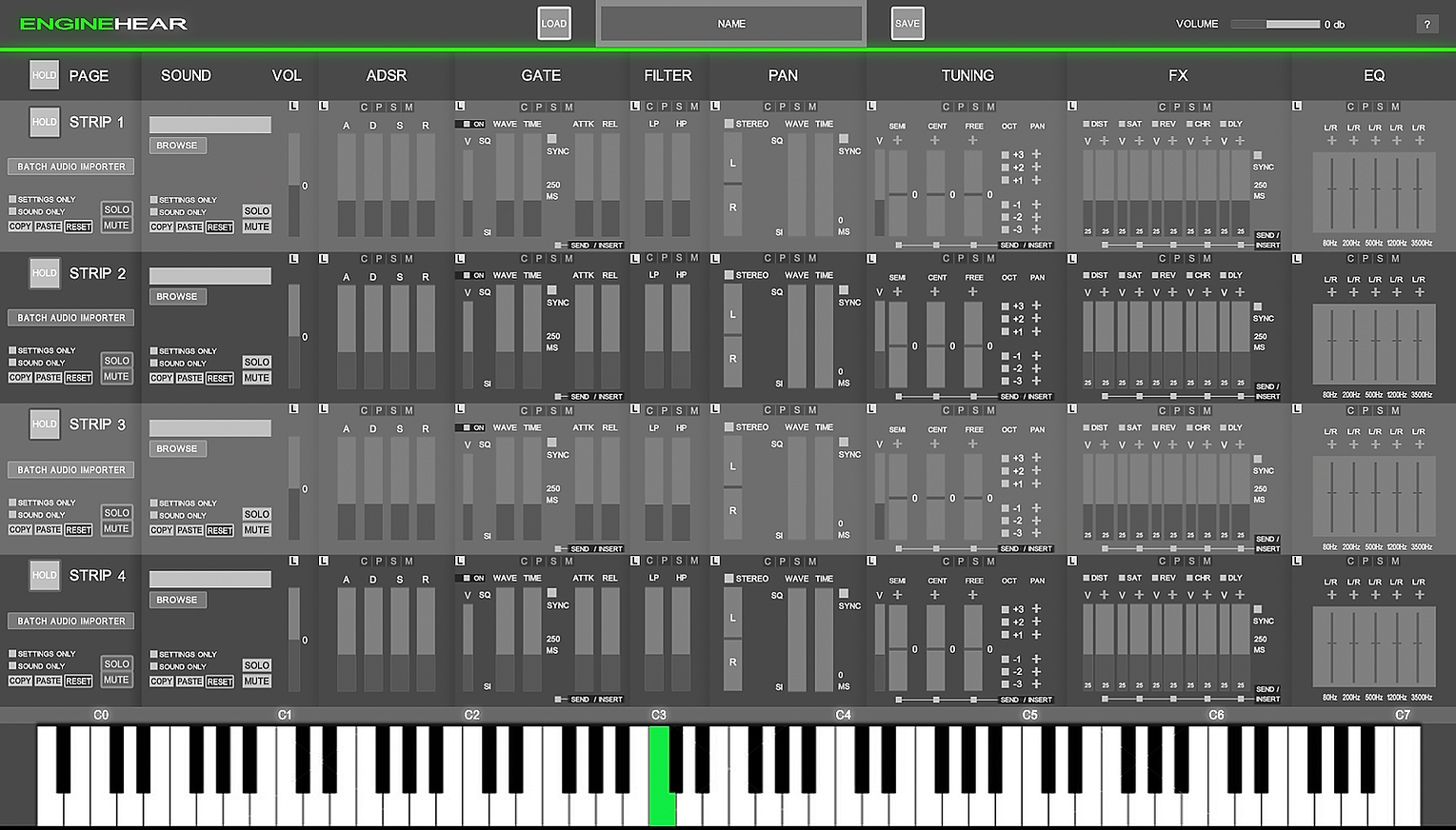

Saving in ENGINEHEAR would result in a patch containing all sounds and effects settings.
To save multiple versions of a patch would only require changing the name and clicking Save.
To load a patch into ENGINEHEAR, drag and drop the patch file into the import window.
NOTES
ENGINEHEAR is a conceptual audio engine in the box for crafting sounds at the speed of ideas.
From sound designers to media composers, creating new sounds with an emphasis on flexibility and immediacy, is paramount.
An environment without encumbrances and stifling restrictions common place in a DAW.
Instead turning work into unbridled experimentation with an unparalleled creative environment.
ENGINEHEAR is this environment.
An environment of boundless possibilities.
With endless results.
All reached fast.